
First, a quick note about browsers: browsers are your portal to the internet and there’s all kinds of information being exchanged between your browser and 3rd-parties going on in the background. Furthermore, sites you visit online have all kinds of ways to track your activity while you’re browsing. Therefore, it’s important to make sure you understand a little bit about what’s happening under-the-hood, so to speak. There are many opinions about which browser is the best, which is the most secure, and which settings to use for the best experience. Just so you are aware, any changes you make to your browser’s settings has the potential of making you more identifiable online. Please understand, I am by no measure an expert; and honestly, this site is more about a learning-by-doing approach for me to understand more.
The recommendations below are simply my personal preferences based on my own research and usage, and I encourage you to visit the following sites for a more in-depth discussion on such matters:
- + browserleaks.com - Test your browser for leaks!
- + privacytests.org - Compare browsers
- + privacytools.io - Do some research
Recommended Privacy Settings: Firefox
Part I: Quick settings guide for most users
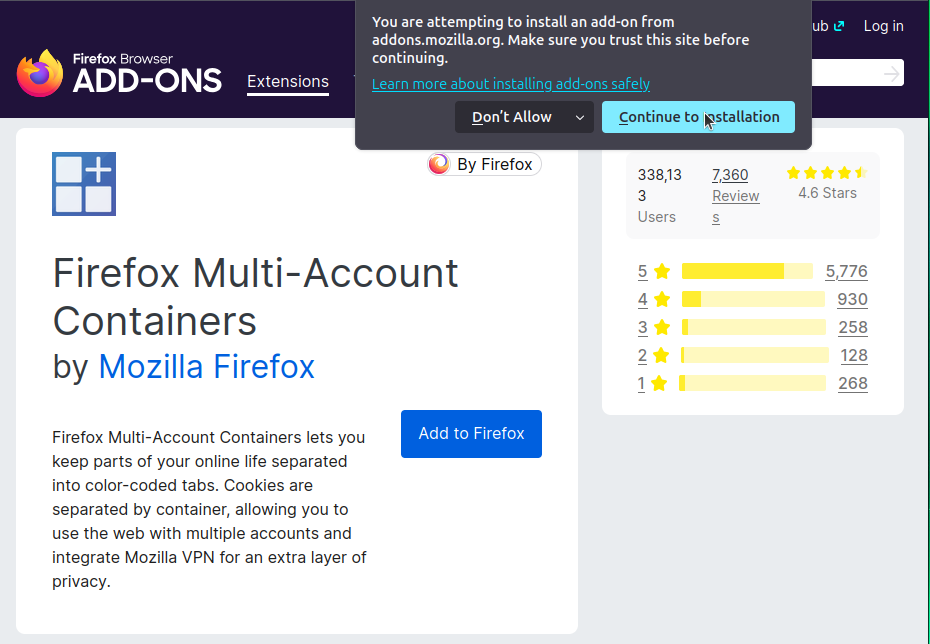
I recommend two and only two add-ons: uBlock Origin and Multi-Account Containers. uBlock Origin is an adblocker and more. It comes with a set of preconfigured lists that can block annoying ads and popups. It can also block javascript and other potentially annoying or intrusive content. Multi-Account containers is an add-on that compartmentalizes activities, such as shopping and banking. Containers restrict nosy cookies and javascript from peering into places they don't need to see.<
Step I. Add-ons
Click the hamburger symbol in the upper right hand corner of the Firefox browser. Select "Add-ons and themes". Search for uBlock Origin and select "Add to Firefox". Select "Continue to Installation" on the Firefox warning. Follow the same steps for Multi-Account Containers
Multi-Account Containers Usage: To use containers, simply right click on the on the plus sign next to the tabs at the top of the browser and select and select a container to open the new tab. You can also create new containers by selecting 'Manage Containers'. Perhaps you want a social media container, or even a container only for Facebook and another only for Google!
uBlock Origin Usage: Click on the uBlock icon in the upper right corner of the menu bar and click on the gears.
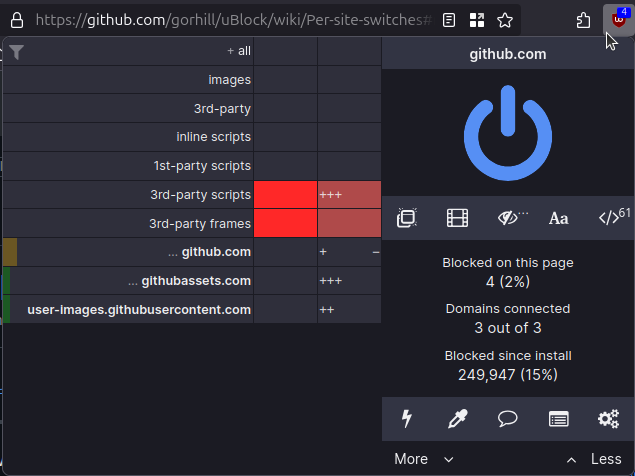
- First: On the Settings page, I select all the options under 'Default behavior'. ⚠ Warning: This will break many sites that require javascript. However, that can be easily fixed by simply pressing the uBlock icon again and removing the red X from the javascript icon. If you're watching videos or something, you'll want to remove the red X from the little film strip icon. You can also just click the large power button to completely turn off uBlock, if you continue to have trouble and want to confirm it's a uBlock setting. Alternatively, you can leave the defaults unchanged if you don't want to fiddle with site breakage. Using the rest of the settings will provide 'Medium' protection and much less breakage!
- Second: I select "I am an advanced user"
- Next: I navigate to the "Filter Lists" tab located at the top of the page. There, I click on the down arrow next to Ads and select AdGuard-Ads. Next, I select all the lists under 'Privacy' . I then select "EasyList/uBO" under "Cookie Notices", "EasyList" under "Social Widgets", and "EasyList" and "uBlock filters" under Annoyances. Finally, click "Update now" at the top of the page.
- One last step: Navigate to "My rules" at the top of the page and copy following:
- * * 3p-script block
- * * 3p-frame block
- Paste the two rules in the right-hand box and click the Save button. From there, you can go on a test run with the current settings, or just hit the Commit button and make the changes permanent. This will block 3rd-party scripts and 3rd-party frames. Your uBO icon should now show a blue square with the amount of blocked content when you visit a site. The blue square verifies you are using 'medium' blocking
Step II. Settings (Skip to Part II if you're not 'most users').
Return to the hamburger icon and select "Settings". privacy_turtle recommends the following settings:
General: I don't change much on the "General" tab. I do prefer a dark appearance
Home: select "Blank Page" for "Homepage and new window" as well as "New tabs". I then deselect everything else.
Search: I select DuckDuckGo as my default search engine and deselect "show search suggestions" and "show recent searches"
Privacy & Security:
- + Enhanced Tracking Protection: I select "Strict".
- + Website Privacy Preferences: I leave "Tell websites not to sell or share my data" and "Send websites a Do Not Track request" deselected because no one pays attention to these requests and they can actually cause you to be more trackable.
- + Cookies and Site Data: I select "Delete cookies and site data when Firefox is closed"
- + Passwords: I deselect "Ask to save passwords"
- + Autofill: I deselect everything under Autofill
- + History: I deselect everything under History and select "Clear history when Firefox closes"
- + Firefox Data Collection: I turn off all Firefox Data Collection and Use. For Security, I select all the options
- + Deceptive Content and Dangerous Software Protection: I leave "Block pop-up windows" and "Warn you when websites try to install add-ons" selected
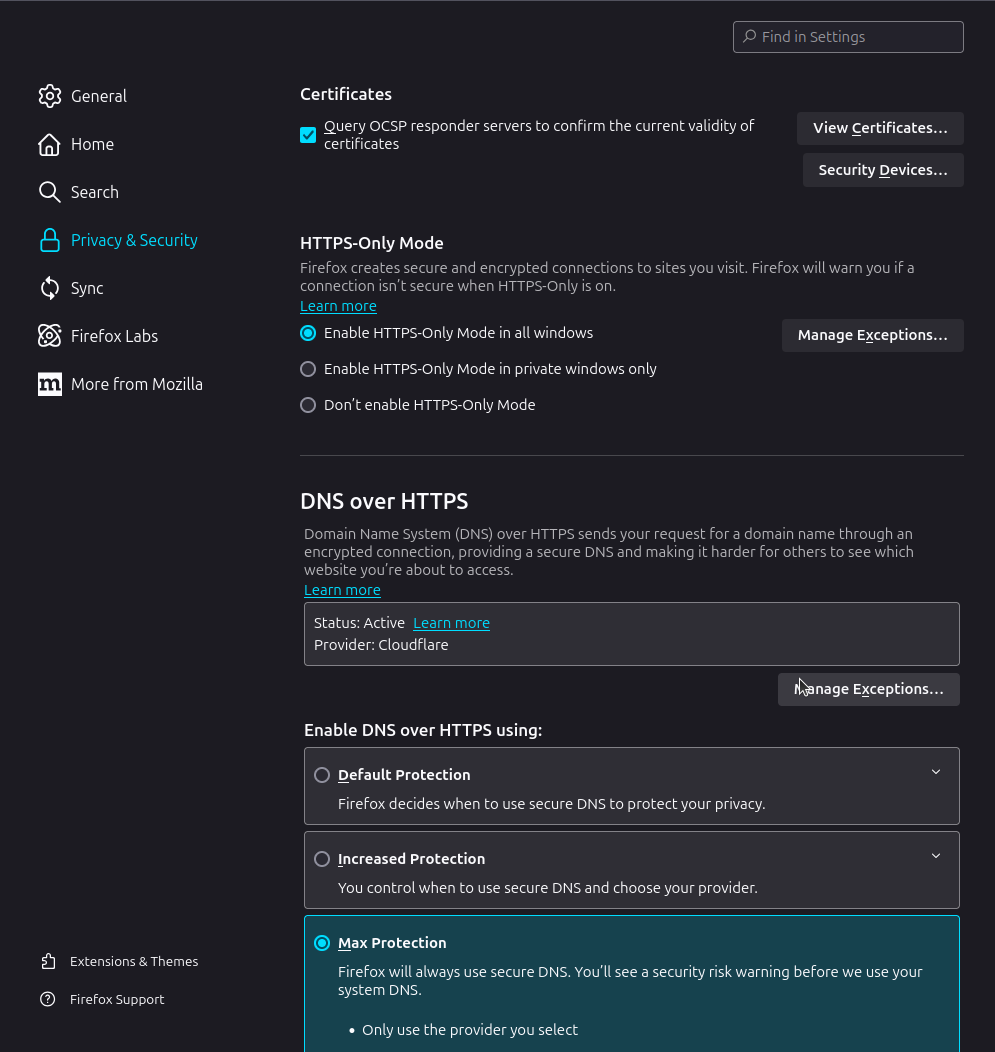
- + Certificates: I select "Query OCSP responder servers to confirm the current validity of certificates"
- + HTTPS-Only Mode: I enable HTTPS-Only Mode in all windows (note: this could lead to DNS leakage if you use a VPN)
- + DNS over HTTPS: Finally, I select DNS over HTTPS with "Max Protection" and I leave Cloudflare default (see note above)
Recommended Privacy Settings: Firefox
Part II: Download and setup user.js (for users requiring more privacy).
'user.js' is a firefox configuration file with preselected options for privacy and security in mind (some of the options are even "hidden"). Setting up user.js eliminates the time-consuming need to go through every option within firefox's “about:config” interface as well as avoiding typos or mistakes that may cause firefox to malfunction. For detailed installation instructions, I encourage you to visit the github Wiki
Step I. Downloads
Visit https://github.com/arkenfox/user.js/. Download user.js, updater.bat (windows) or updater.sh (Linux), and prefsCleaner.bat (Windows) or prefCleaner.sh (Linux).
Step II. Backup
Back up your current configuration in case something goes wrong. To do this, type 'about:support' in your browser's url search bar and look for the line item called "Profile Directory". This is where your configuration is stored on the computer. Make a copy of this entire folder and place it somewhere safe.
Step III. Place Downloads
Place all downloaded files into firefox's 'Profile Directory'. If this is a new installation of Firefox, all you need to do is restart. If you've been using firefox and changed some settings, it is recommended to run the prefsCleaner file first.
Step IV. Overrides
You may want to change some of the settings within user.js, which is not recommended. Instead, you should create a 'user-overrides.js' file to place within your 'Profile Directory'. You can learn more about this on the user.js wiki Overrides Wiki.
Congratulations! You've SHELL'ed up!